> For the complete documentation index, see [llms.txt](https://academy.theufolab.com/llms.txt). Markdown versions of documentation pages are available by appending `.md` to page URLs; this page is available as [Markdown](https://academy.theufolab.com/game-editor/components/minigames/rings-advanced-puzzle.md).
# Rings (Advanced Puzzle)
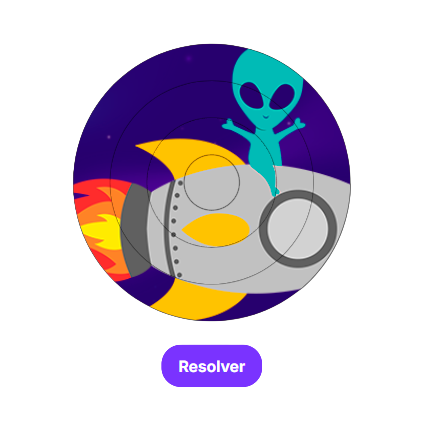
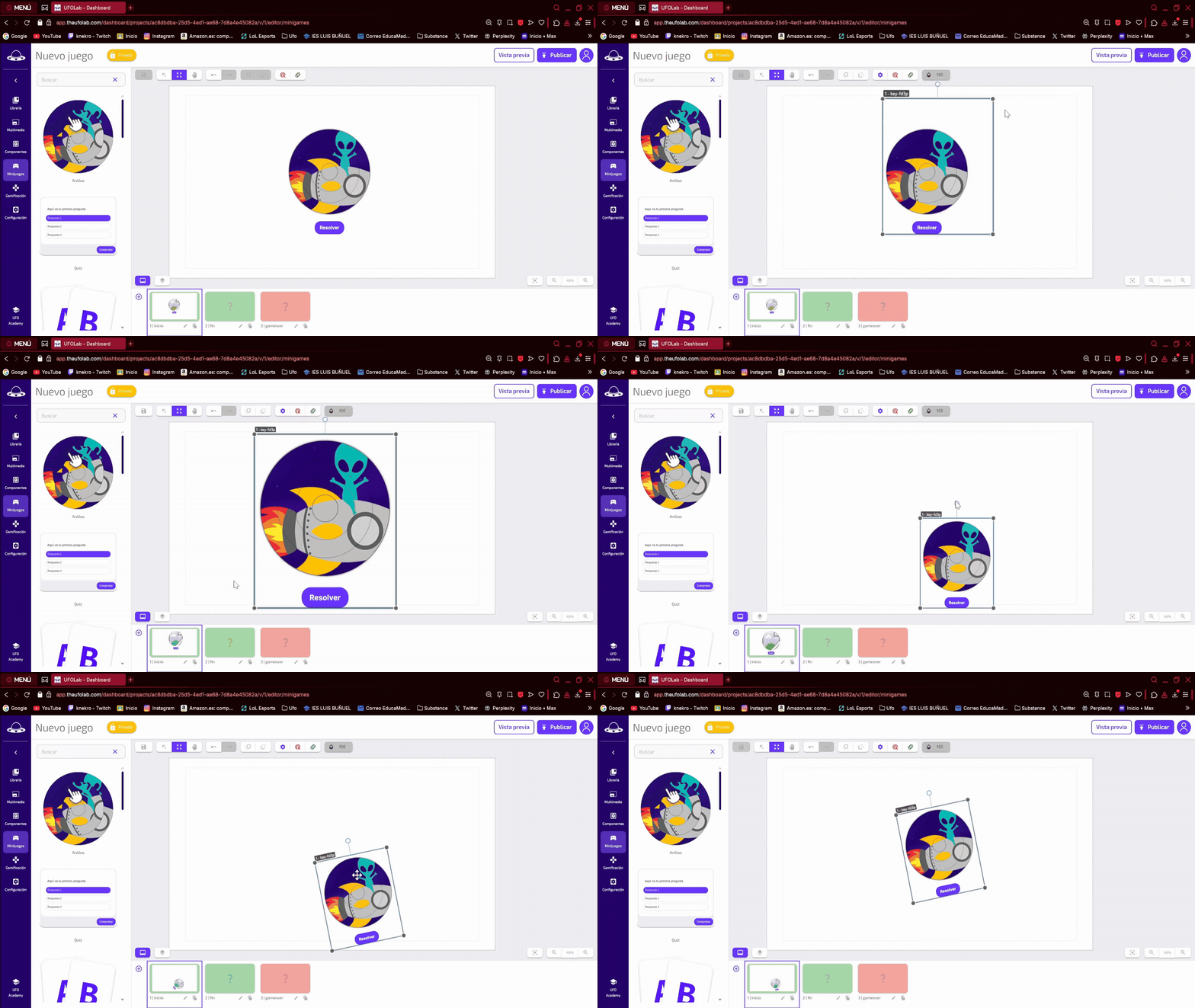
Drag the component from the minigame tab to the scene you're working on.
## How to change the component style
To resize it, use the arrow icon in the top menu.
## How to set up the Rings puzzle
Click on the component and then on the settings gear icon that will appear in the top menu or double click on the component.
You will see a menu with three set up options: Puzzle, Aspect and Advanced.
### Puzzle
\
By clicking here you can set the amount of rings you want the puzzle to have, this way you can set the difficulty, you can also set the threshold in wich the ring is considered to be placed correctly, and you can also set if you want the winning action to be played once the puzzle is finished (this way the player doesn´t need to press the confirm button).
You can also add a custom .jpg or .png image to the puzzle.
{% hint style="info" %}
Remember that if you use the auto confirm option, the losing action will not trigger.
{% endhint %}
### Aspect
In the Aspect setting you can:
* Change the size of the middle ring.
* Change the size of the margins.
* Remove edges and shadows.
### Advanced
In the advanced setting you can:
* Set the wait time between when the player finishes the puzzle and when the win or lose actions are executed.
## Player interaction
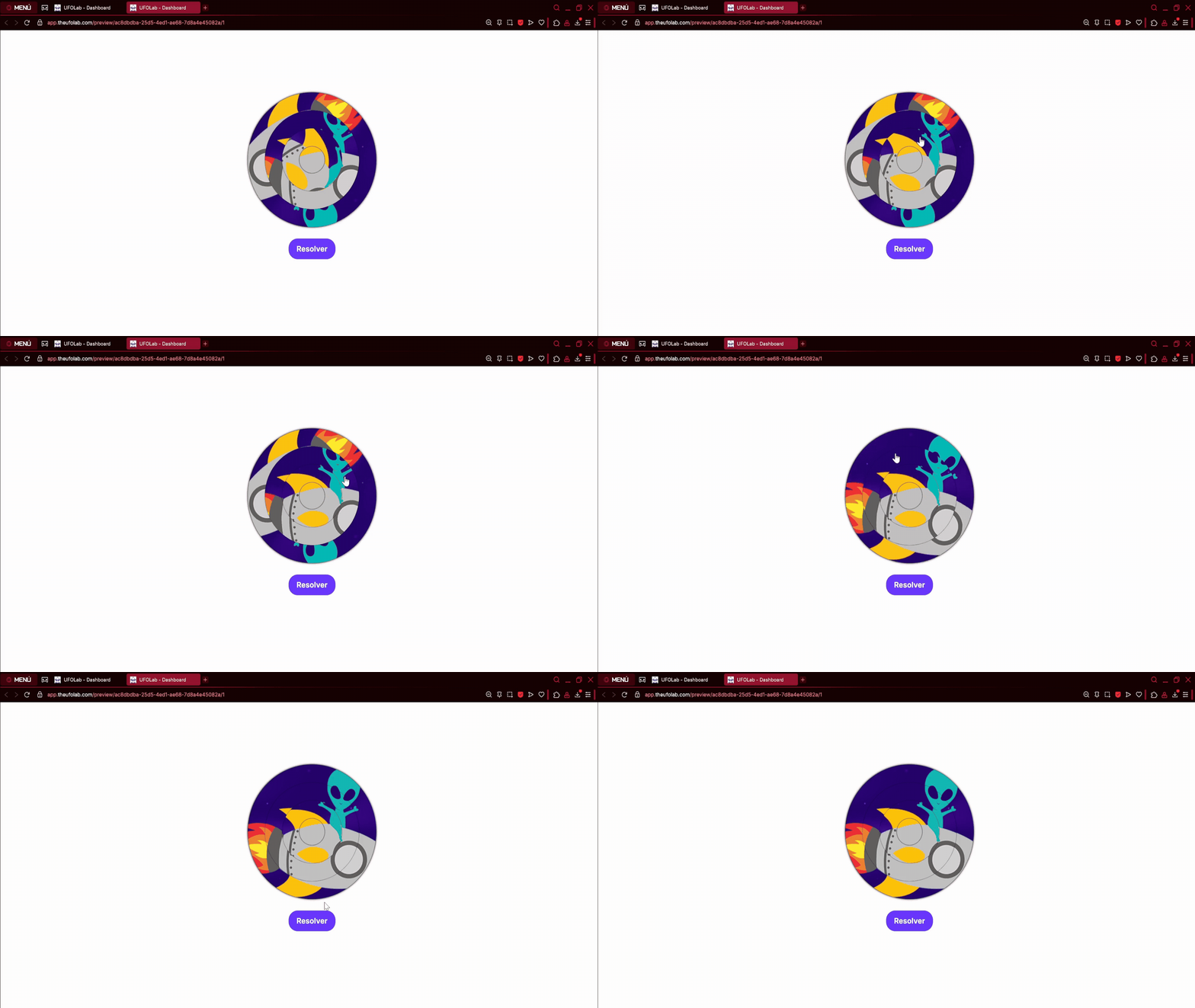
Players can move the rings in circles (except the one at the center) to place them at the right position.
## How to set up the actions of winning and losing.
There are different actions that you can set up for this game.
### When the player solves the puzzle.
When the player hits the solve button and the rings are placed correctly (player doesn´t need to press it if the auto solve option is checked) the winning action occurs.
\
For winning you can set up the following actions:
* **Go to another scene in the game**
* **Add X points**
* **Subtract X points**
* **Visit an external URL**
### When the player fails to solve the puzzle
When the player hits the solve button and the rings are not placed correctly (player doesn´t need to press it if the auto solve option is checked) the lossing action occurs.
For lossing you can set up the following actions:
* **Visit an external URL**
* **Subtract X points**
* **Add X points**
* **Go to another scene in the gameç**
{% hint style="info" %}
It's very important to specify what should happen in each case. Click on the Actions icon in the top menu and add one or more actions for both when the player gets the puzzle right or wrong.
{% endhint %}